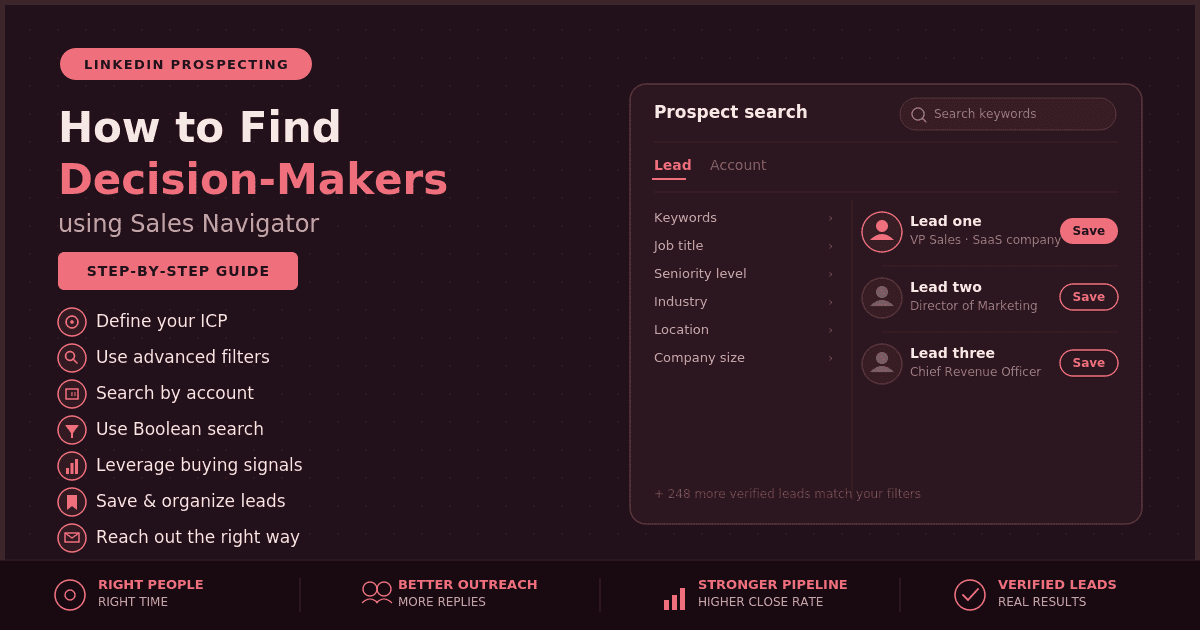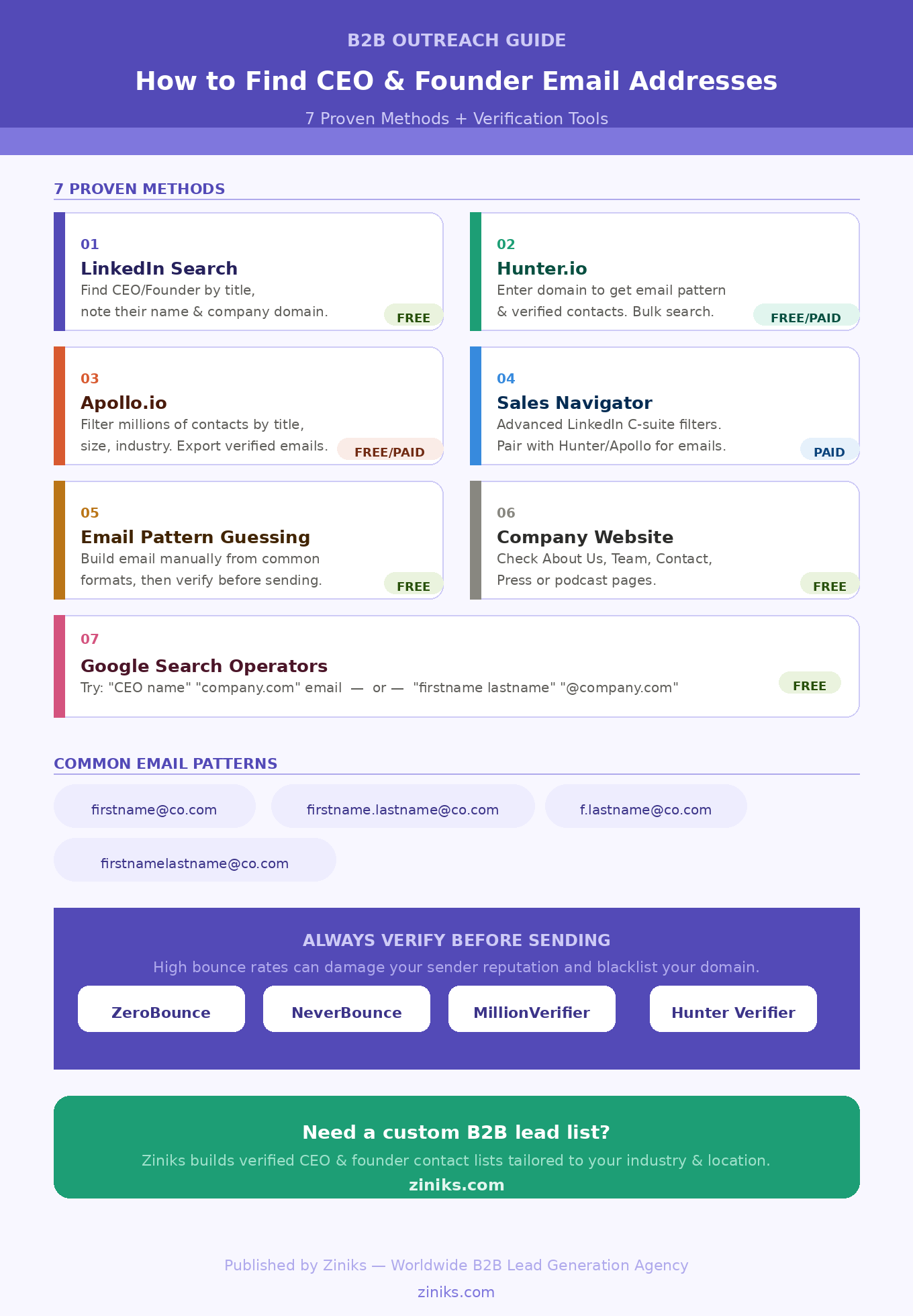
find decision-makers using LinkedIn Sales Navigator
If you’re in B2B sales or running outbound campaigns, you already know the biggest bottleneck isn’t finding people on LinkedIn — it’s finding the right people. The ones who actually hold budget, sign off on deals, and can say “yes.”
That’s exactly what LinkedIn Sales Navigator was built for. In this guide, we’ll walk you through how to find decision-makers using LinkedIn Sales Navigator, step by step — from setting up your filters to actually reaching out in a way that gets replies.
What Is LinkedIn Sales Navigator?
LinkedIn Sales Navigator is a premium prospecting tool built on top of LinkedIn’s network of more than a billion professionals. Unlike the free version of LinkedIn, it removes search limits and gives you access to dozens of advanced filters, real-time buying signals, and lead-tracking tools designed specifically for sales and lead generation.
In short: regular LinkedIn helps you build a network. Sales Navigator helps you build a pipeline.
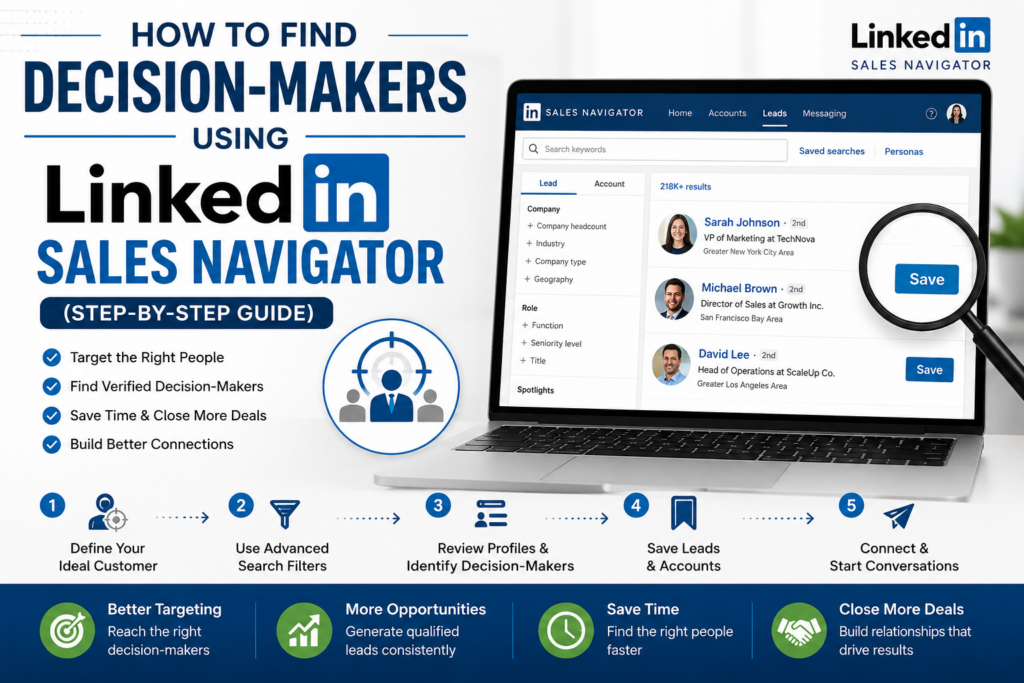
Step 1: Define Your Ideal Customer Profile (ICP) Before You Search
Before opening a single filter, get clear on who you’re actually looking for. A vague search wastes credits and time. Write down:
- Industry — which sectors does your product or service actually fit?
- Company size — startup, mid-market, or enterprise?
- Seniority level — Director, VP, C-level, or Founder?
- Job function — Sales, Marketing, Operations, IT, Finance?
- Geography — which countries or regions do you sell into?
This single step prevents the most common mistake people make with Sales Navigator: casting too wide a net and ending up with a list full of irrelevant contacts.
Step 2: Use Lead Search With High-Signal Filters
Open Lead Search from the Sales Navigator homepage. Instead of stacking seven or eight filters at once, combine just two or three high-signal ones. This tends to produce sharper, more relevant results than over-filtering.
A few combinations worth testing:
- Seniority (Director/VP/C-level) + Current job title + Posted on LinkedIn recently → surfaces active, engaged decision-makers
- Company size + Industry + Changed jobs recently → surfaces leaders who just moved roles and are open to new tools or vendors
- Location + Job function + Years in current position → surfaces stable, long-tenured leaders who are less likely to ghost mid-deal
Pro tip: Be cautious with the “Industry” filter on individual leads — it relies on self-reported data and can be unreliable. It’s often more accurate to filter by industry at the company level using Account Search first, then drill down into the people inside those accounts.
Step 3: Search by Account, Not Just by Person
If you’re targeting specific companies (account-based selling), don’t start with Lead Search — start with Account Search. This lets you filter by:
- Company size
- Industry
- Revenue range
- Headcount growth
- Funding stage
Once you’ve built a shortlist of target accounts, click into each one and use “View employees” or Relationship Explorer to see the people inside — including decision-makers, influencers, and other stakeholders you might otherwise miss.
This matters because B2B deals rarely close through one contact. Most purchases involve several stakeholders — a budget owner, an end-user champion, a technical evaluator, and someone from procurement or finance. Mapping the account before messaging anyone increases your odds of reaching the actual decision-maker on the first try.
Step 4: Sharpen Your Search With Boolean Operators
Sales Navigator supports Boolean search in keyword fields like Job Title and Company, which lets you get far more precise than basic filters alone:
- AND — both terms must be present (
sales AND SaaS) - OR — either term qualifies (
"VP Sales" OR "Head of Sales") - NOT — excludes a term (
"Head of Sales" NOT recruiter) - Quotation marks — exact phrase match (
"Chief Revenue Officer")
Example search to find senior sales decision-makers in B2B SaaS:
("VP Sales" OR "Head of Sales" OR "Chief Revenue Officer") AND (SaaS OR "B2B software") NOT recruiterStack this on top of your structural filters (seniority, company size, geography) for a tightly targeted list with far less noise.
Step 5: Use Buying Signals to Time Your Outreach
Finding the right person is only half the job — timing matters just as much. Sales Navigator surfaces several signals that indicate a prospect may be more open to a conversation right now:
- Job changes — someone who just stepped into a new role is usually evaluating tools and vendors within their first few months
- Company funding events — post–Series A/B companies often see budget and hiring accelerate
- Headcount growth — rapid scaling usually signals new operational needs and available budget
- Content engagement — when a prospect interacts with your posts or content, that’s a window to reach out
- Shared connections (TeamLink) — see when a colleague already has a warm path to your target
As a general rule, try to reach out within 24–72 hours of a trigger event. The signal cools fast — the longer you wait, the less relevant your outreach feels.
Step 6: Save Searches and Build Lead Lists
Once your search is dialed in, save it. Sales Navigator will keep monitoring LinkedIn for new people who match your criteria and surface them automatically — turning a one-time search into an ongoing, self-refreshing source of leads.
Organize what you find into lead lists by segment, campaign, or pipeline stage (for example, “Healthcare CIOs — Europe” or “SaaS VP Sales — North America”) rather than dumping everyone into one giant list. This makes prioritization and follow-up far easier as your pipeline grows.
Step 7: Reach Out the Right Way
A decision-maker’s inbox is crowded. A generic connection request or copy-pasted pitch gets ignored — or blocked. A few things that consistently perform better:
- Reference something specific — a recent role change, a company milestone, or a post they shared
- Keep the first message short — you’re opening a conversation, not closing a deal
- Don’t pitch immediately — lead with relevance or a useful insight, not a sales pitch
- Multi-thread the account — message more than one stakeholder so the whole opportunity doesn’t disappear if one contact goes quiet
Common Mistakes to Avoid
- Over-filtering — stacking too many filters often shrinks your pool to almost nothing
- Ignoring account mapping — focusing on a single contact instead of the full buying committee
- Skipping list hygiene — contact data degrades over time as people change roles and companies, so review and clean your lists regularly
- Treating Sales Navigator as an outreach tool — it’s a prospecting and research engine; you’ll still need an email/CRM workflow to actually run outreach sequences
Final Thoughts
LinkedIn Sales Navigator can dramatically cut the time it takes to find and reach real decision-makers — but only if your filters, account mapping, and timing are deliberate. The tool gives you the precision; how you use it determines whether you end up with a list of names or an actual pipeline.
If building and verifying decision-maker lists manually feels like a full-time job on top of your actual sales work, that’s exactly the kind of research-heavy task a B2B lead generation partner can take off your plate — delivering verified, ready-to-contact decision-maker lists instead of hours of filtering and guesswork.
Want a sample list of verified decision-makers in your target market? Get in touch with our team and we’ll show you what a ready-to-use, verified B2B lead list looks like.
Businesses that want to find decision-makers using LinkedIn Sales Navigator can take advantage of advanced search filters to identify the right prospects. Whether you’re targeting CEOs, founders, directors, or managers, LinkedIn Sales Navigator helps you build highly targeted lead lists and improve your outreach strategy.
The best way to find decision-makers using LinkedIn Sales Navigator is by filtering prospects based on industry, company size, location, job title, and seniority level. This targeted approach saves time, increases response rates, and helps sales teams connect with qualified business contacts.
If you want to find decision-makers using LinkedIn Sales Navigator, combining its advanced search features with verified contact information can significantly improve your B2B lead generation efforts. High-quality prospect data leads to better engagement, more meetings, and higher conversion rates.
Frequently Asked Questions (FAQ)
What is LinkedIn Sales Navigator?
LinkedIn Sales Navigator is a premium prospecting tool designed to help businesses find qualified leads, decision-makers, and target accounts using advanced search filters.
How can I find decision-makers using LinkedIn Sales Navigator?
You can use filters such as job title, seniority level, industry, company size, and location to identify the right decision-makers for your sales or marketing campaigns.
Who are the most common decision-makers in a company?
Decision-makers often include CEOs, Founders, Owners, Presidents, Directors, Vice Presidents, Marketing Managers, Sales Managers, Operations Managers, and Procurement Managers.
Why should I use LinkedIn Sales Navigator for B2B lead generation?
LinkedIn Sales Navigator provides accurate professional data, advanced search capabilities, and personalized recommendations, making it one of the best tools for B2B lead generation.
Conclusion
If you want to find decision-makers using LinkedIn Sales Navigator, using advanced filters and targeted search strategies can significantly improve your prospecting results. Businesses that consistently find decision-makers using LinkedIn Sales Navigator generate better leads, build stronger relationships, and close more deals.
Best Tips to Find Decision-Makers Using LinkedIn Sales Navigator
To successfully find decision-makers using LinkedIn Sales Navigator, always use accurate job titles, company filters, seniority levels, and industry targeting. These strategies help you reach qualified prospects faster and improve your B2B lead generation campaigns.